Monday, 17 August 2015

Kali Linux 2.0 Released — Download Most Powerful Penetration Testing Platform


kali Linux 2.0 Download
Offensive Security, the creators of Swiss army knife for Security researchers, Penetration testers and Hackers have finally released the much awaited and most powerful version of Kali Linux 2.0.


 Kali Linux 2.0 (Codename ‘Kali Sana’),

an open-source penetration testing platform brings hundreds of Penetration Testing, Forensics, Hacking and Reverse Engineering tools together into a Debian-based Linux distribution.

Kali Linux 2.0 offers a redesigned user interface for streamlined work experience, along with a new multi-level menus and tool categories options.

 Kali Linux 2.0 is now a rolling distribution, means users will receive tools and core system updates frequently.

Kali Linux 2.0 Features:


    Runs on Linux kernel 4.0,
    use full Gnome 3 Desktop instead of gnome-fallback,
    improved hardware and wireless driver coverage,
    support for a variety of Desktop Environments,
    updated desktop environment and tools,
    Featuring new cutting-edge wireless penetration tools,
    Kali Linux now added desktop notifications, so that you do not miss anything,
    Support Ruby 2.0, which will make Metasploit will load much faster,
    Kali 2.0 added inbuilt screencasting tool so that you can record desktop.


Sadly, Kali team has removed the Metasploit Community and Pro packages. Instead, now just offers open-source Metasploit-framework package pre-installed.

Video Teaser:

       
Kali Linux 2.0 Released — Download Most... by Hacking_And_Tricks


Upgrade to Kali 2.0

Kali Linux users can upgrade their Kali 1.x to Kali 2.0 without reinstalling whole operating system from scratch. To do this, you will need to edit your source.list entries, and run a dist-upgrade as shown below.

    cat << EOF > /etc/apt/sources.list
    deb http://http.kali.org/kali sana main non-free contrib
    deb http://security.kali.org/kali-security/ sana/updates main contrib non-free
    EOF
    apt-get update
    apt-get dist-upgrade # get a coffee, or 10.
    reboot  

Download Kali 2.0 Penetration Testing Platform


in the following flavors (^_^)

    Kali Linux 64 bit
    Kali Linux 32 bit
    Kali Linux VMWare or VirtualBox images
    Kali 2.0 for ARM architecture


How to Record Calls on Android Smart Phone.


If you want to prank your friend on call and share it with your friends then you might need a call recording software.

Here, in this tutorial we will teach you How to Record Calls on Android Smart Phone.


How to Record Calls on Android Smart Phone:

Step 1: Download and install Automatic Call Recorder from Google Play Store
Step 2: Select theme ( Classic or Light ).If you want you can  save your call records in Google Cloud. Check the Increase Call Volume button to hear recorded voice louder.
Step 3: Click “Setting” and you can change cal recording format and directory. You can even enable and disable call recording option in settings button.


Features in Automatic Call Recorder:

  • Delete
  • Share
  • Linked with Google Cloud
  • Voice recorder
  • Edit call notes
  • Contact history
  • Contact details
  • Play

Sunday, 16 August 2015

How to a take a screenshot on a PC with Windows 7, 8 and 10


How to Take a Screenshot on a PC - Hacking Tricks by Hacking_And_Tricks


We could spend all day arguing the merits of a good screen-capture utility. They are quick and efficient, often providing a simple way to take a JPG snapshot of an application window or your entire display in a matter of seconds without the need to download any external software. Perhaps you need to send a screenshot to tech support, email an image to a friend, or, if you’re like us, capture a screenshot for an awesome how to guide about how to take a screenshot on a PC. Luckily, Windows has several built-in features for taking and saving screenshots for whatever reason you might need them, and they’re only a couple of keyboard clicks away. All three methods covered in this guide are free, no hassle, and work fantastically on nearly all machines built in the last decade and beyond. Let’s take a look.


Using the default keyboard shortcuts

Taking a screenshot on Windows is one of the easiest tasks possible, regardless of which version of the operating system you’re running. There are only a few steps – assuming you haven’t fiddled with the innate keyboard controls – and you should already have access to all the image-editing software you need.
Step 1: Capture the image: Assuming the area you want to capture is displayed on your screen, press the Print Screen button typically located in the upper right-hand corner of your keyboard to capture a screenshot of your entire display. Alternatively, press Alt + Print Screen to merely capture a screenshot of the active window. Keep in mind there will be no noise or any other indication the screenshot was taken, but the resulting image will be saved as a PNG file to your clipboard. If using Windows 8 or Windows 10, simply click the Windows Key + Print Screen to automatically save a full-screen screenshot within the Screenshots folder of your picture directory.


Step 2: Open Paint: Click the Start menu, navigate to the Accessories folder (in Windows 10, the folder is called Windows Accessories instead) and click paint from the list of native Microsoft software. The icon depicts a painting palette with a brush on the right-hand side, but it will vary slightly depending on your operating system. Alternatively, search and open the program from the Windows search bar. On Windows 8, press the Windows key to open the start screen. Afterward, click the down arrow in the bottom left, press Ctrl + Tab, or swipe downward from the center of the display to access the Apps View. From there, select Paint.

Step 3: Paste the screenshot: Once open, click the Paste button in the upper left-hand corner of the program, choose Edit then Paste, or press Ctrl + V on the keyboard to paste your screenshot. Again, the exact navigation and wordage will vary slightly from OS to OS, but the keyboard shortcut will remain the same.
Step 4: Save the screenshot: Perform any edits you want, such as cropping the image to a specified area, and click the main File option in the top-left corner. Afterward, select Save as, title the new file, choose a save location, and select your desired file format from the drop-down menu. For most purposes, JPG will do fine, but a variety of other formats are available to choose from such as PNG, BMP, GIF, and others. Click the gray Save button in the bottom right-hand corner when finished.

Using the Snipping Tool

SnippingToolThe built-in screen capture utility in Windows is great, but it’s not the most robust or versatile when it comes to saving a snapshot of your screen. The Snipping Tool is another built-in Windows utility that has allowed users to better define and capture portions of their desktop display as a screenshot since the introduction of the program in Windows Vista. Aside from taking a screenshot of the entire screen and active window, the tool allows free-form outlines and rectangular screenshots for a more adjustable selection, as well as built-in annotation and sharing options. Snipping Tool Navigation Step 1: Open the Snipping Tool: Click the Start menu, navigate to the Accessories folder (in Windows 10, the folder is called Windows Accessories instead) and select Snipping Tool from the list of native Microsoft software. The icon depicts a pair of blue scissors with two white ovals beneath. Alternatively, search and open the program from the Windows search bar. If using Windows 8, click the down arrow in the bottom left, press Ctrl + Tab, or swipe downward from the center of the display to access the Apps View. From there, select the Snipping Tool.
Step 2: Choose the snip type: Once open, click the down arrow to the right of New in the upper left-hand corner of the program window and select your desired snipping type from the list of drop-down options. The free-form snip allows you to draw irregular shapes, the rectangular snip specified-sized rectangles, the window snip the active window, and the full-screen snip the entire screen.
Step 3: Define the selection: Use your mouse or trackpad to manually define your screen-capture selection. Obviously, the full-screen snip and window-snip don’t provide a ton of leeway in terms of versatility and selection choice, but the latter will still require you to choose the appropriate window before continuing.
Step 4: Save the screenshot: Perform any edits you want, such as highlights or annotations, and click the main File option in the top-left corner. Afterward, select Save As, title the new file, choose a save location, and select your desired file format from the drop-down menu. If your screenshot includes text, you’ll notice increased clarity if you save in the .png file format, but you can check out our guide to different image to help you choose the best one for each case. If you prefer, you can click the envelope icon to directly email the screenshot as an attachment. Click the gray Save button in the bottom-right corner when finished.
Snipping Tool Save As Navigation

Using PicPick

There are countless screenshot utilities, both free and premium, floating around on the Web. The bulk of them provide a healthy dose of customization and versatility that exceed Window’s innate screen-capture capabilities by leaps and bounds while maintaining the free-to-use price tag and light footprint. With hotkeys out the wazoo, and a steady stream of editing tools to help polish and refine your screenshot to suit your fancy, all-in-one design tool PicPick is one of the best available. It’s free, available for Windows XP onward, and offers a more comprehensive feature-set than the innate options available via Windows.
Related: The best screen capture apps for Mac and PC
Step 1: Download and install PicPick: Click the green Free Download button on the left-hand side of the PicPick homepage and install the application once it downloads. The simple setup wizard will walk you through the entire installation process, installing the files and creating a desktop shortcut, but be on the lookout for any toolbars or potential malware that may come bundled with the program. PicPick Navigation
Step 2: Open PicPick: Click the Start menu, navigate, and select the PicPick from the PicPick folder. The icon depicts a painting palette similar to the Microsoft Paint icon sans the brush. Alternatively, search and open the program from the Windows search bar. If using Windows 8, press the Windows key to open the start screen. Afterward, click the down arrow in the bottom left, press Ctrl + Tab, or swipe downward from the center of the display to access the Apps View. From there, select PicPick.
Step 3: Choose the selection type: Once opened, choose the selection type from the list housed in the Screen Capture section in the bottom left-hand corner of the main program window. Like the Snipping tool, there are options for free-form, rectangular, window, and full-screen screenshots, as well as a fix-region and scrolling window options for greater control when capturing elongated images.
Step 4: Define the selection: Use your mouse or trackpad to manually define your screen-capture selection. Obviously, the full-screen snip and window-snip don’t provide a lot of leeway in terms of versatility and selection choice, but the latter will still require you to choose the appropriate window before continuing.
Step 5: Save the screenshot: Perform any edits you want, such as cropping and filter overlays, and click the main File option in the top-left corner. Afterward, select Save As, title the new file, choose a save location, and select your desired file format from the drop-down menu. For most purposes, JPG will do fine, but a variety of other formats are available to choose from such as PNG, GIF, or PDF. If you prefer, you can click the cloud icon to directly email the screenshot as an attachment or upload it to Twitter among other things. Click the gray Save button in the bottom right-hand corner when finished.
PicPick Save As

Convert your Facebook profile into a Page.


Facebook is the number one social networking website with more than one billion active users. All of us have a Facebook profile and we regularly post some pictures and status on FB. We have facebook profiles, but some people has a Facebook page. Mostly famous people, bands or other interests.


Anyone can easily create a Page on Facebook, without any cost. You can even Convert your Facebook Profile into a Fan Page very easily and in less than a minute. That is what I am going to teach you today. There are advantages and disadvantages to convert your profile. The Advantage is that, you will not lose your friends, instead all your friends will automatically start liking your Page and will see your post but the Disadvantage is that you will lose all your wall posts and images posted to your wall.


After reading the advantages and disadvantages, you might have a different opinion. If you still want to convert your profile to a page then follow the steps mentioned below.

Step 1) Login to your profile which you want to migrate.

Step 2) Now click here to visit the page where you can convert your profile.


Step 3) Now choose any category from here in which you fit. You must choose Artist or something similar.

Step 4) Now choose a sub-category and click on Get Started.

Step 5) As you know that you cannot undo this action. So for confirmation you need to enter your password. Enter your password and click OK. In just a few seconds, your Facebook page will be created and you like count would be same as the number of friends you had. Hope you like this method. Share this post with your friends so they can also convert their profile to a page. If you have any queries, comment below.

IDM Crack.

Note : This crack has a built-in update function. Once IDM new version comes, you can update and apply crack right away.

Last Updated : IDM 6.23 build 18


Internet Download Manager Universal Crack

Internet Download Manager aka IDM developers release a new build of  their well-known Download Accelerator ; Internet Download Manager  regularly. So everybody who uses pirated versions get so pissed off that they have to find a new version of crack every time when an IDM update comes. So we made a really awesome fix for that
An Universal Web Crack. A new era in scene world. Web crack is a new concept of cracks that download and update crack content as the target program gets updated.
So whenever IDM releases a new version.Update your crack using built-in updater and apply crack. Easy as that ! You can simply trust On HAX IDM crack because it has a history of more than 3 year with regular updates,and also it has more than 10000k worldwide downloads.
How to Crack any IDM Version ?
  1. Install the latest version of IDM / Or update via quick update (yes its possible now)
  2. Turn off any virus guards
  3. Download and Run IDM Universal Web Crack.exe
  4. Update IDM Universal Web Crack.
  5. Select IDM Installation path
  6. Click Crack button and wait till it say IDM activated successfully ! (Press the button twice to make sure it worked)
  7. Now open IDM and enjoy lifetime full version license

How to Update / When a new version of IDM comes

Update IDM via IDM’s quick update.Then  run the IDM Universal Web Crack and follow above steps from step 3.

Universal Web Crack V4 Changelog
  • Under-the-hood web serial key fetching for up-to-date serial keys
  • Completely new and faster updater engine
  • Direct crack mode to release faster crack updates (we know we did late updates, but there’ll be no more late updates with the new method)
  • Improved registry cracking to fix all the fake serial key issues (yup there will be no more fake serial key issues with this + web key fetch method)
  • Improved version detection of IDM installation with multiple methods (no more wrong version detection)
  • New windows 8 theme with auto applying
  • Reduced file size
  • Many many bug fixes
Notes and Info
  • do not delete update.bin file as it is needed to function the crack. In case if you delete it, crack it re-download the missing files once opened
  • perfect cracking will be done once, you get all three ticks in green or purple in the crack status (purple tick means direct crack mode active)
  • if a new crack version release becomes late, you will see a notice about it in the bottom of crack :)
  • Click Read Me button in crack to get information about all the functions in Crack App.
  • No, you cannot remove that smiley face comes after registration name :)
  • Crack is 100% clean. Virus guards may act made mad as it modifies IDM installation registry values
If you have any problems on this or found a bug, comment below. Cheers ãƒ„

Direct Download Link

Internet Download Manager latest official setup
IDM 6.23 build 18 Setup + Universal Web Crack V4.rar (7.8 MB) / Mirrors
IDM Universal Web Crack V4.rar (1.5 MB) / Mirrors
IDM 6.23 build 18 Manual Crack.rar (1.2 MB) / Mirrors – (if the normal crack doesn’t work/xp users)


CLASH OF CLANS HACK. APK MOD


Clash of Clans Unlimited! No Ban! PvP! Clans Introduced!

We bring you the Mod/Hack of Clash of Clans, currently,  the most trending game. Tested many times, for stability, this mod is surely going to enhance your level of gaming! Attack other players, and loot their resources. This is a perfect mirror of official server, except that you get everything Unlimited!


Server Information

    Servers                                                                                                Status
    Thunderbolt Online

Server Specifications

  • 64 GB RAM
  • 3.7 ghz Processor
  • 2 TB Hard Disk

Instructions

  1. Download the given CoC PvP+Clan Exclusive Thunderbolt APK from link given below
  2. Install and enjoy :)

Changelog

  1.  Servers are given custom names(beta). Memory leaks and some bugs fixed.
  2.  Multiple servers sharing same database, so that another server can be used, when one is down, and your game progress remains saved, even after changing server.
  3.  New custom server working with latest version
  4.  Custom APK provided with Main Database working on multiple servers.
  5.  New servers
  6.  New Custom APK
  7.  Patched to work with latest version of CoC (Android and ioS)
  8.  Assigned Elastic IP to the main server
  9.  ♪Custom Barbarian Tower and SnowFall added. Its Christmas!! ♥
  10.  All Savings related issues fixed. PvE added! Chasethose Goblins! :) 
  11.  Universal APK released! :)
  12. “Dual Install”> You can install both original apk and mod apk on phone! Play   them side by side.!
  13. Bringing you townhall 11! :)
  14.  PvP added! Enjoy Looting others :)
  15.  Bugs Fixed
  16.  Tri-servers Introduced
  17.  Clans Introduced! Thunderbolt APK released!

Download Link:
Thunderbolt APK (47 MB)

Note: (for Android Lollipop users only)


KMS AUTO WINDOWS AND OFFICER ACTIVATOR.


KMSAuto Net 2015

KMSAuto Net – automatic KMS-activator for operating systems Windows VL editions: Vista, 7, 8, 8.1, 10, Server 2008, 2008 R2, 2012, 2012 R2 also Office 2010, 2013, 2016.
KMSAuto Net can Activate
  • Windows Vista Business/N/Enterprise/N
  • Windows 7 Professional/N/Enterprise/N
  • Windows 8 All Versions
  • Windows 8.1 All Versions
  • Windows 10 Technical Preview All Versions
  • Office 2010/2013 /2016 All Versions
  • Windows Server 2008/Standard/Datacenter/Enterprise/2008R2
  • Windows Server 2012/Standard/Datacenter/2012R2
Whats New ?
  • Updated ProduKey v1.66 to v1.70.
  • New TAP driver to support Windows 10. A random IP address is used and when the activation fails check box is cleared.
  • Re-compiled KMS Service. So antivirus software will not detect it as threat/false positive.
  • Included utility MSActBackUp.
  • Added Keys for Windows 10 and Office 2016.
  • Conversion from Office 2016 RETAIL to VL.
  • If Office is not installed, the button “Activate Office” is disabled.
  • In the “About” tab you can find a link to a page with my programs.
  • Added program for Windows 10 “Show or hide updates”

DOWNLOAD LINK:

 KMSAuto Net 2015 v1.3.8 Portable | Mirror  (7 MB)

Saturday, 15 August 2015

Criminal Case Hack.


Download Criminal case hack and Enjoy :)

PRIVACY: SETTINGS AND TIPS EVERY IPHONE AND IPAD OWNER SHOULD KNOW.


While it is highly unlikely that a rogue agency or government will try to hack your Apple device to steal your most recent Snapchats, it doesn’t mean that your privacy is unimportant. As we continue to move more personal and private information online and onto mobile devices, the need to address privacy concerns will continue to be top priority. For iOS devices, there are more than a few measures and privacy settings that everyone should know about.


1. Internet Browsers


Tracking, cookies, and browser history are all in play when you use the internet on your mobile device. While these features make it easier to find frequently visited sites or speed up load times, they do use and store your private browsing information. If you are using Safari you can edit your privacy settings by going to Settings -> Safari -> and enabling Do Not Track, blocking cookies, and turning on Fraudulent Website Warning.


If you use Chrome, privacy settings are accessed by tapping on the Menu icon (three vertical dots) followed by Settings -> Privacy. But the most privacy-friendly way to surf the web on your mobile device is to download Duckduckgo and use that as your primary browser.

Another convenience feature, AutoFill, can also make it easier for thieves and hackers to gain access to saved cards and sensitive information. You can disable this by going to Settings -> Safari -> Passwords & AutoFill and disable Names and Passwords and Credit Cards.


2. Set a stronger Passcode or Enable Touch ID

The easiest way for someone to access your private information is if they have your passcode or crack a poorly chosen one. To make that option a little harder, be sure to enter your passcode out of the visibility of others. You can also pass on the simple 4-digit passcode and create a longer alphanumeric password. Go to Settings -> Touch ID & Passcode and slide Simple Passcode OFF. You will be prompted to enter in your Old Passcode followed by a new one.


And while a complicated passcode does add a level of safety, creating a Touch ID is the most secure method of locking your phone. Breaking a passcode is one thing, but forging your fingerprint is another. Again, go to Settings -> Touch ID & Passcode -> Add a Fingerprint and follow those directions.

3. Pay attention to what has access to your location

There are many apps like Waze, Tinder, or Uber that need your location to function properly but there many apps that track your location without really needing to. You can see which applications have access to your location by going to Settings -> Privacy -> Location Services. You can see that an app like HBO GO really has no business accessing my location, so that is an application that I will switch to Never.


While your are inside Location Services, it would serve you well to turn off Share My Location. Sharing your location with friends and family may have its uses, but for folks interested in maintaining their privacy this is a must.

4. Ad Tracking

Find System Services by scrolling all the way to the bottom of the Location Services list. In System Services you will see all the other ways Apple is tracking your device. The ones you will want to disable are Location-Based iAdsLocation-Based Alerts, Share My Location, Spotlight Suggestions, and Frequent Locations.
Location-based iAds and Alerts use your location to send “relevant” ads to your phone depending on where you are at that time.


Spotlight Suggestions in iOS 8 uses your location to display options based off your spotlight search entries. Here is an entry with Spotlight suggestions enabled and disabled (left, right).


Lastly, Frequent Locations uses your frequently visited locations to “provide useful location-related information.” But if someone did get a hold of your phone they could see the exact address and location of your home, your work, your girlfriend’s house, and your other girlfriend’s house. Not only is that really creepy, but it’s a huge privacy issue for some. Clear your location history and disable Frequent Locations in Settings -> Privacy -> System Services -> Frequent Locations.


5. Contacts

Recent contacts are constantly visible whenever you double-press the home button, revealing the task switcher. If you want to keep who you have contacted to yourself, then you can disable this feature. Again, this was created to save time, but convenience does open yourself up to easier access.
In Settings go to Mail, Contacts, Calendars, and under the Contacts section find “Show in App Switcher” and disable Phone Favorites and Recents.


6. Minimize access to emails and messages 

Go to Settings -> Notifications and disable the Show Previews option for both Mail and Messages. This way someone can’t glance at your unprotected lock screen and view the first few lines of your messages and emails. You will still be notified whenever a new message or email comes in, you just wont be able to see what it says, and neither will anyone else.

7. Find my iPhone 

Enabling Find My iPhone should be one of the first things an iPhone or iPad user does. Set up your iCloud account and start using the Find My iPhone application.


With Find My iPhone you can locate all of your Apple devices. If your device is lost or stolen you can get directions to your device, enable Lost Mode, or completely erase your device so that no one can access all your information. Find my iPhone is a privacy advocate’s best friend.

8. Siri Knows

Siri has improved tremendously over the years, and I find myself using her more and more to help me with my daily tasks. But for those of you with privacy concerns there a few things you should know. Unless disabled, Siri can be accessed from the lock screen even if you have Touch ID or a passcode enabled. By using the voice command, “Hey Siri” or holding the home button on your phone anyone can send messages to your contacts, send emails, or call people without even needed to hack your device.
This ability has helped good Samaritans in returning lost devices to people, so it isn’t all bad. But if you do wish to add another level of security you can prevent Siri from being accessed from the lock screen and by the “Hey Siri” command.
To turn off  “Hey Siri”, go to Settings -> General -> Siri and disable Allow “Hey Siri”.  To disallow access from the lock screen go to Settings -> Touch ID & Passcode. Put in your passcode and slide Siri OFF in under Allow Access When Locked section.


9. Photos

Whenever you take a photo or video your iPhone or iPad will geotag the location of wherever you are at that time. Needless to say, this could cause some privacy concerns. You can disable this in Settings -> Privacy -> Location Services and turn Camera to Never.


Also, if you delete a photo or photos they will still remain on your device for up to 40 days. So, if you are trying to get rid of some “evidence” you will actually have to delete the images twice. Find the album Recently Deleted -> Select -> Delete All. This will permanently delete the images from your device.
Recently Deleted

While I have shown you guys some instances where privacy may be a concern, Apple does a great job of making it extremely easy to adjust and modify to your liking. Many of these “privacy issues” are created with the user in mind. Geotagging photos can be very useful, as well as accessing Siri from the lock screen. But if you want to be as secure as possible, some of these features do open you and your device up for security and privacy breaches.  So, I hope this list has informed you guys on some of your devices features and you can create your own privacy settings.


STOP WAITING ! KNOW HOW TO INSTALL WINDOWS 10 WITHOUT WINDOWS UPDATE.


After rolling out the Windows 10 upgrade process, Microsoft has released Windows 10 ISO files. If you don’t want go through the regular upgrade process, you can use these Windows 10 ISO images to upgrade your genuine Windows 7 and 8 PCs. This Microsoft Media Creation Tool could also be used to create bootable media for clean install after the upgrade.


Microsoft has released its best OS up to date and Hacking Tricks has been covering the Windows 10 to bring the latest information to you. The users who have registered for free Windows 10 upgrade, they are getting Windows 10 upgrades along with the Windows Insiders. If you don’t feel like waiting in the line, you are at the right place, at the right time. Microsoft has released Windows 10 ISO files that could be used for performing a clean install, or upgrading your genuine Windows 7 and Windows 8 to Windows 10.

How to Install Windows 10 Without Windows Update Right Now, Using Microsoft’s Tool

Before you decide to move ahead with the process, there are some things that need to be taken care of. As usual, you need sufficient disk space in your system drive, and your PC must be having an active internet connection to download the setup files.

Note: Your PC must be running genuine and activated Windows 7 or Windows 8. This media creation tool also works if you are running some older preview build of Windows 10 Preview upgraded from genuine Windows 7 or 8.

Now confirming all the requirements, it’s time install Windows 10 on your PC. Head over to Microsoft’s website to download the media creation tool and choose the appropriate 32-bit or 64-bit version. You can download the directly from the links given below.


Windows 10 Download Tool 32-bit

Windows 10 Download Tool 64-bit


How to Install Windows 10 Without Windows Update?

After installing the Windows 10 Media Creation tool, find the file in your PC and click on it to start the installation. After few seconds, you’ll see a new window as shown below. It asks “what do you want to do.” Out of the two given options, you need to select “upgrade this PC now” option and hit “Next.”

Note that during the installation, your PC will restart few times. It’s usual, this isn’t anything to worry about.


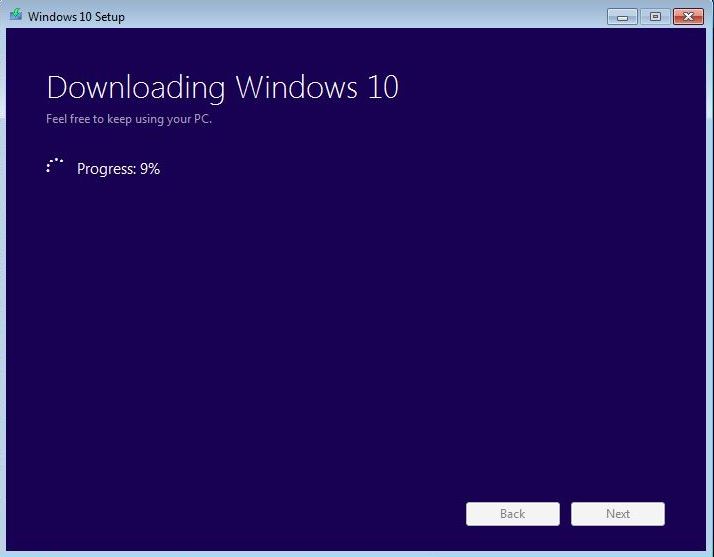
After choosing the first option, you’ll be greeted with a new window that will show that your Windows 10 copy is being downloaded. After waiting for few minutes, your download will start and you will notice the progress indicator increasing slowly. You can even minimize this app window and do some background work.


After the download process is completed, you will see the following windows that will show you the message that your Windows 10 installation media is being created. Again, you can minimize this windows to continue your background work. While performing the Windows 10 upgrade, make sure that your PC connected to the power supply.


 As Microsoft tool completes the Windows 10 installation media creation, you’ll see a new tiny window in your PC showing that setup is preparing your PC for Windows 10 installation. This process will take a while.


This will be followed by the “Getting updates” step where your PC will download the updates needed to continue the setup.


Now Windows 10 setup will confirm that your PC has enough space for installation. This will just take a moment. If the setup detects that your PC doesn’t have enough space, the setup aborts.


After completing the memory check process, all the pre-requisites and checks are completed. Now your Windows 10 setup is ready to proceed. You’ll be shown a message that this Windows 10 upgrade will keep your files and apps, and you can also select what to leave behind and what to take forward with you.

Click on “Install” to proceed with the Windows 10 upgrade and your PC will restart.


After rebooting, the setup resumes and the installation process moves ahead.


You PC reboots again and you see the “Upgrading Windows” message. This consists of three steps: Copying files, Installing features and drivers, and Configuring Settings.

This is the final step of Windows 10 upgrade and your PC will restart several times during it.


What more? Well, everything is done.

Your PC is upgraded to Windows 10. Just log in to the operating system and you are taken to the next window for configuring settings.


You are shown a window that introduces you the new apps of Windows 10. These include Photos, Microsoft Edge, Music, and Movies and TV. Just click “Next” and your Windows 10 PC is ready to use.


This is what  your PC will look after upgrading  from Windows 7 Ultimate/Windows_8/Windows_8.1 to Windows 10 Pro.